The workspace
VirtuProbe Studio is organized like a code editor: a single Project Explorer on the left, a strip of editor tabs across the top of the workspace, and a top bar for global actions. Everything you open becomes a tab: a probe, a chain, a script, or a whole view like the Proxy.
Project Explorer
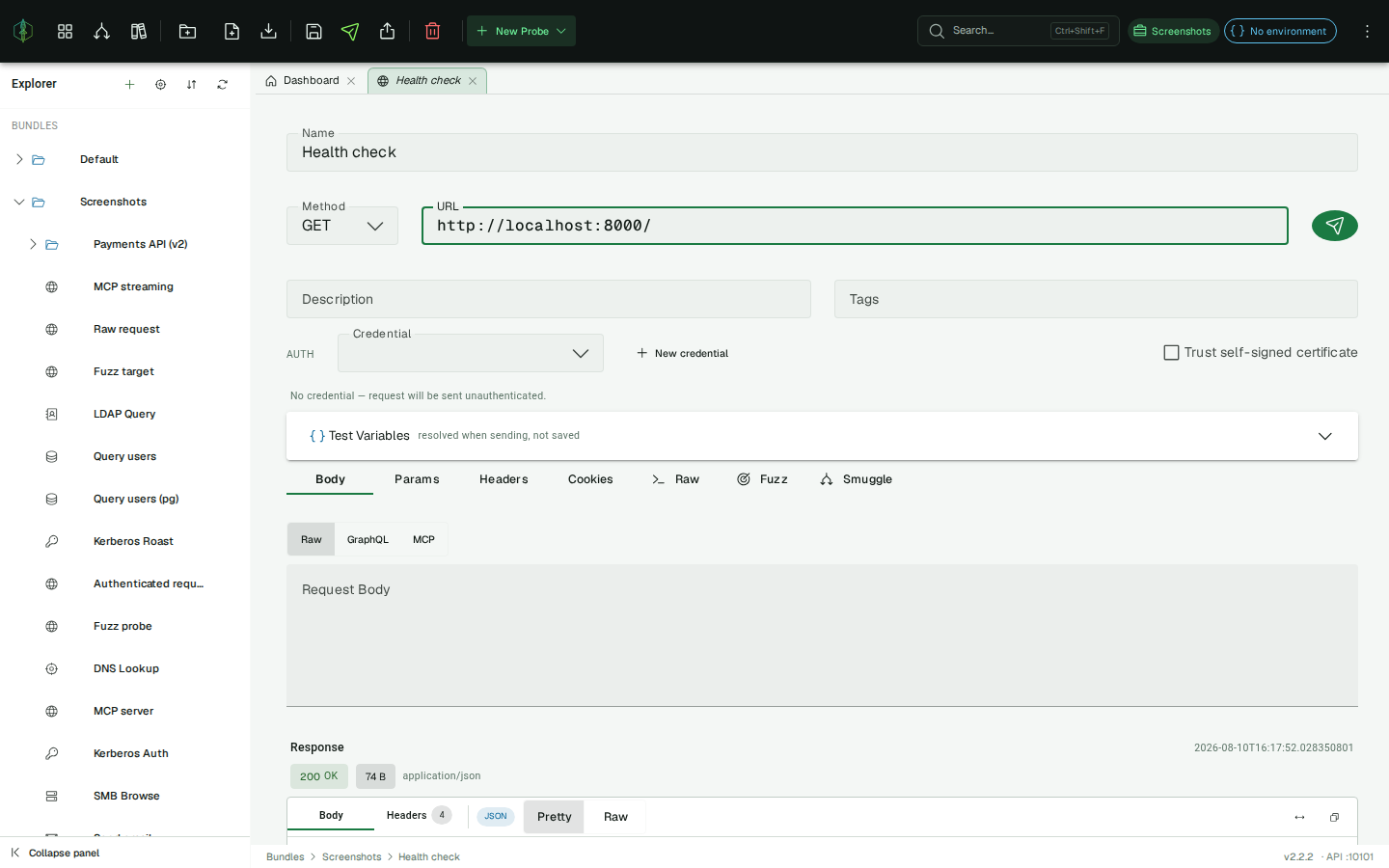
Section titled “Project Explorer”The Explorer is the one panel on the left, visible on every screen. It is a single bundle tree. Every bundle can hold sub-bundles and, as leaves, the artifacts that live in it: probes, chains, scripts, suites and skills. There are no separate lists; a chain sits in the tree beside the probes in the same bundle.
Bundles linked to the active project sort to the top; free bundles follow. The tree shows the active project’s bundles plus every free one, so switching projects re-scopes the whole Explorer at once. See the scope model.
Selecting a probe, chain, script, suite or skill opens it as a tab. Selecting a bundle expands or collapses it.
Creating and organizing
Section titled “Creating and organizing”- The + menu in the Explorer header creates a new bundle, chain, suite, script or skill, and below a divider offers Import Bundle from JSON. Each new artifact lands in the selected bundle, or in the active project’s Default bundle when nothing is selected.
- Each row has a ⋯ menu. For a bundle: add a probe, add a sub-bundle, rename, move, export, or delete. For a probe: rename, clone, move to another bundle, export, or delete. For a chain, script, suite or skill: Move to… another bundle, or delete (a chain also offers Create skill from chain).
- The sort button in the header cycles the probe order (default, then A to Z, then Z to A).
Finding things
Section titled “Finding things”- Autoscroll from source: the crosshair button in the Explorer header. When on, switching tabs automatically reveals and selects the matching item in the tree.
- Reveal in Explorer: press Alt+F1 from any editor to expand the active item’s path and scroll it into view.
- Collapse panel: the button at the bottom of the Explorer hides it; a thin tab on the edge brings it back. Its width and collapsed state are remembered.
Editor tabs
Section titled “Editor tabs”Opening a document adds a tab. Tabs behave like a modern editor:
- Preview tabs: a single click opens a document in italic preview. Opening another document reuses that slot. Double-clicking, or making any edit, promotes it to a permanent tab.
- Unsaved changes: a dot marks a tab with unsaved edits. Switching tabs keeps your edits; you’re only prompted if you close a tab with unsaved changes.
- Closing: the × on a tab, or right-click for Close, Close others, Close to the right, and Close all.
- Reordering: drag a tab along the strip.
- Persistence: your open tabs are remembered per project and restored the next time you open the app. (Unsaved edits are not persisted.)
When no tabs are open, the workspace shows an empty state. Open something from the Explorer, or pick a view from the top bar.

View tabs
Section titled “View tabs”Whole views open as tabs too: the Dashboard, the Project Dashboard, the Proxy, the Library, and Agent Activity. These can only be open once, and clicking their launcher again just reveals the existing tab. They keep their state while you work in other tabs (the Proxy keeps its live capture, for example).
The top bar
Section titled “The top bar”
From left to right:
- Logo: opens the Dashboard.
- Launchers: icon buttons for the Project Dashboard, Proxy, and Library views (shown when your plan includes them), plus Agent Activity once an agent has connected. Each opens or reveals its tab.
- Context actions: buttons for the active tab (save, run, delete, and so on). They change with whatever you’re editing.
- New Probe: a menu to create a probe in any of the thirteen protocols.
- Search (Ctrl+Shift+F): jump to any project, bundle, probe, chain, or script.
- Project and environment chips: switch the active project and its environment.
- ⋮ menu: Settings, License, Feedback, and Help.
See Keyboard shortcuts for the full list of shortcuts.