
Bundles
A bundle is the container everything you author lives in. A probe, a chain, a script, a suite, a skill: each one belongs to exactly one bundle and takes its visibility from that bundle. Organize bundles by target system, by team, or however the work in front of you is shaped. Bundles nest into a tree, and each bundle can belong to one or more projects, so you only see what is relevant to the project you are working in.
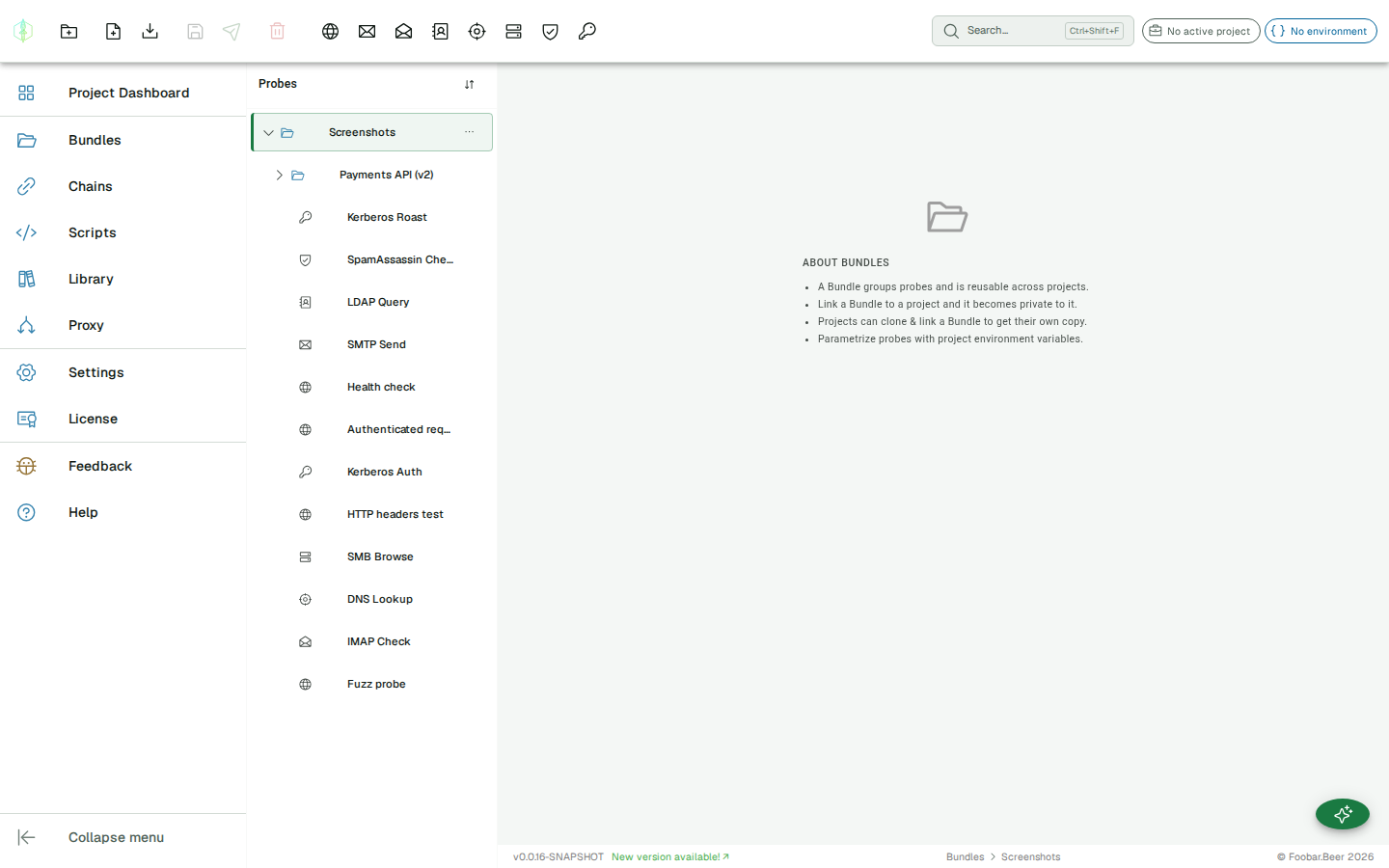
The scope model
Section titled “The scope model”Everything lives in a bundle. Probes, chains, scripts, suites and skills all belong to a bundle. There is no separate home for a chain or a script: the bundle is where it lives, and moving it to another bundle is how you change where it belongs.
A bundle is a tree. A bundle can hold child bundles as well as artifacts, forming a tree that mirrors how a target is structured, for example an Auth flows bundle containing OAuth and Login sub-bundles.
A bundle belongs to zero or more projects. That membership is what scopes it:
- A bundle with no project is free: visible in every project.
- A bundle linked to one or more projects is visible only when one of those projects is the active project.
Visibility is inherited. An artifact is visible exactly when its bundle is, that is, when the bundle is free or belongs to the active project. There is nothing to set on the chain or script itself; it follows its bundle. Switch the active project and the Explorer, together with every probe and bundle picker, shows that project’s bundles plus the free ones, and nothing else.
The Default bundle
Section titled “The Default bundle”There is always somewhere for a new artifact to go. Each project has its own Default bundle, and there is a single global Default bundle for free artifacts that belong to no project. You never have to create these; they exist so nothing is ever left without a home.
When you create a new probe, chain, script, suite or skill, it lands in the bundle you have selected in the Explorer. If nothing suitable is selected, it goes into the active project’s Default bundle. Create a chain with no project active and it lands in the global Default, which makes it free.
Moving an artifact between bundles
Section titled “Moving an artifact between bundles”Because scope is inherited, moving an artifact into another bundle is how you re-scope it. Open a chain, script, suite or skill’s ⋯ menu in the Explorer and choose Move to…, then pick the target bundle. Move it into a project’s bundle and it becomes part of that project; move it into a free bundle and it becomes visible everywhere. Probes move the same way, with Move to another bundle.
The bundle tree
Section titled “The bundle tree”The bundle tree is the whole of the Project Explorer: one panel on the left, shared across every screen. Bundles linked to the active project sort to the top; free bundles follow. From here you create, rename, move, clone, export and delete bundles and artifacts, sort the probe order, and navigate by keyboard. Selecting a probe, chain, script, suite or skill opens it as an editor tab; selecting a bundle expands or collapses it.
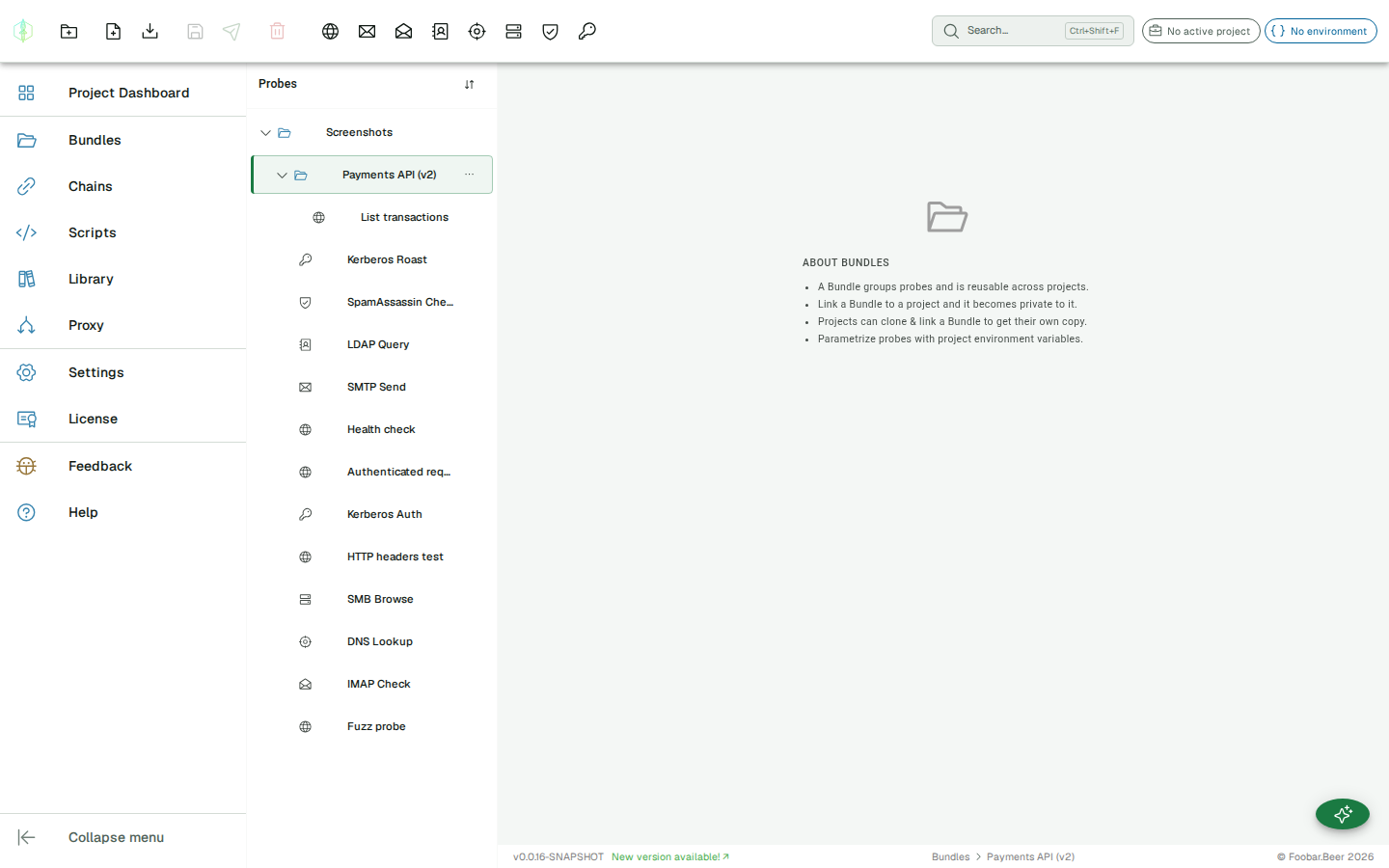
Creating a bundle
Section titled “Creating a bundle”Use the + menu in the Explorer header and choose New Bundle, then enter a name. To create a bundle inside another one, open a bundle’s ⋯ menu and choose Add Sub-bundle. A bundle created while a project is active is linked to that project automatically; sub-bundles are created free so they always travel with their parent.
Bundle actions
Section titled “Bundle actions”Every bundle has a ⋯ menu (revealed on hover) with:
- Add Probe and Add Sub-bundle, to create content directly inside the bundle
- Rename
- Move bundle, to re-parent the bundle or move it back to the top level. A bundle cannot be moved into one of its own descendants.
- Export, to write the bundle and its probes out as JSON
Linking a bundle to a project
Section titled “Linking a bundle to a project”A bundle’s project membership is edited from the Project Dashboard, see Projects → Project bundles. Each visible bundle has a checkbox: tick it to link the bundle to the active project, untick to unlink. The list shows bundles that are free or already linked to this project.
Adding a probe
Section titled “Adding a probe”Select a bundle, then open its ⋯ menu and choose Add Probe (or use the quick-create New Probe menu in the top bar). Choose the protocol and enter a probe name. The probe opens in the editor immediately.
Import and export
Section titled “Import and export”Probes and entire bundles can be exported as JSON and re-imported on any VirtuProbe instance. Use the export action on a bundle or probe in the Explorer, and the + menu in the Explorer header to import from a file.
See Import & Export for the file format reference.