
AI Assistant
VirtuProbe Studio includes an AI assistant that lives in a dockable panel. It can explain what a response means, discuss a probe exchange or a chain/script run, and, when you ask it to, build and run chains and scripts for you. It uses your own model: you bring an API key (or point it at a local model), and requests go straight to the endpoint you configure.
Setup: bring your own model
Section titled “Setup: bring your own model”Open Settings → AI Assistant. The assistant speaks the OpenAI-compatible chat API, so it works with most providers and proxies.
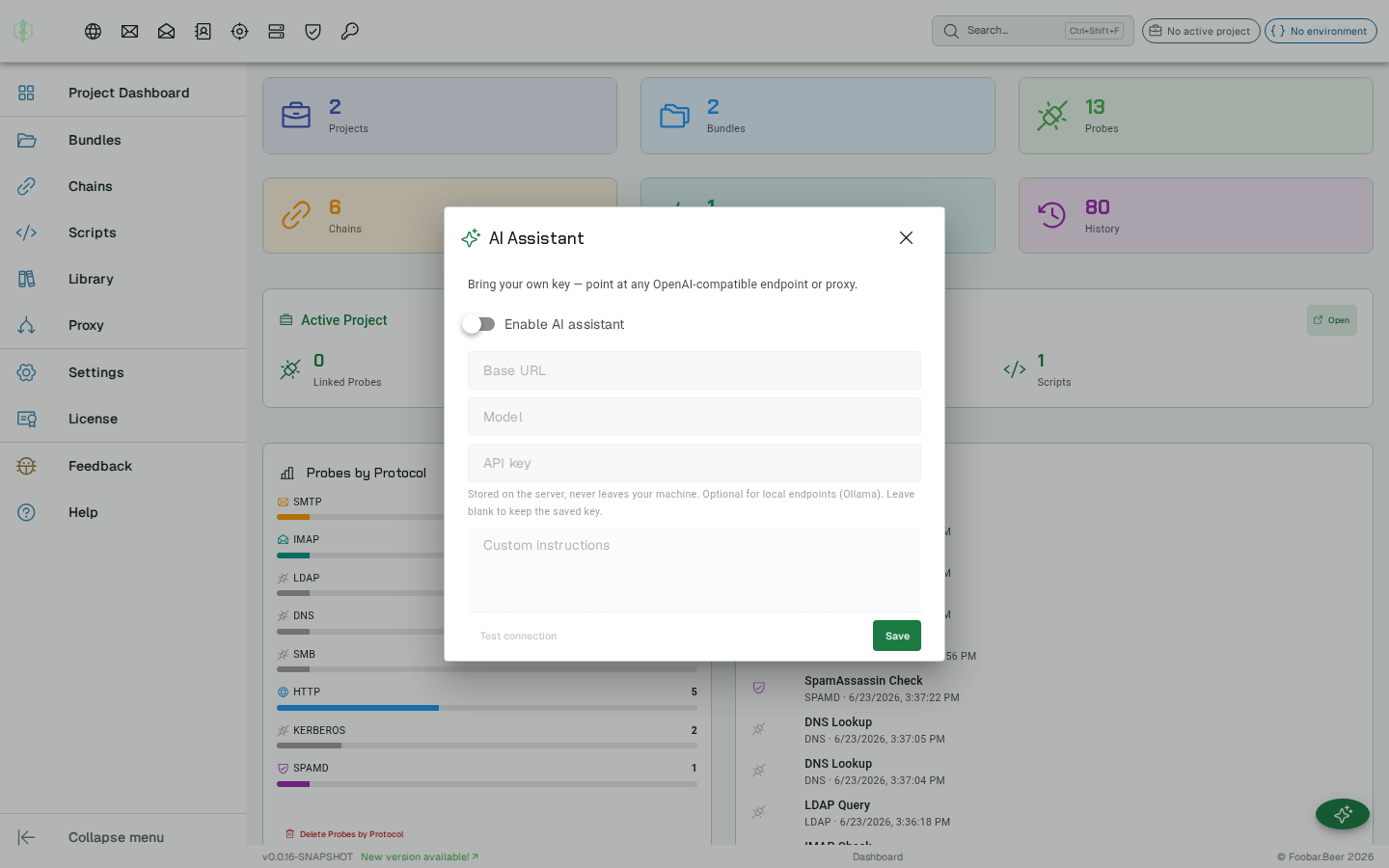
| Field | What it is |
|---|---|
| Enable AI assistant | Master switch. |
| Base URL | The OpenAI-compatible endpoint, e.g. https://api.openai.com/v1. A full …/chat/completions URL is accepted too. |
| Model | The model id, e.g. gpt-4o-mini or a Gemini/other model exposed by your endpoint. |
| API key | Sent as a bearer token. Optional for local endpoints (e.g. a local model server) that need no auth. Leave blank to keep a previously saved key. |
| Custom instructions | Your context for the assistant: your lab and targets, conventions, preferred language. This is appended to a built-in product primer (you don’t need to describe VirtuProbe itself). |
The key is stored locally and sent only to the endpoint you configure. The assistant is currently available in the desktop app.
Chatting
Section titled “Chatting”Click the AI assistant button (bottom-right), or press F5. The panel opens at the bottom of the window, and you drag its top edge to resize it. Replies render as Markdown (with highlighted code blocks).
- Ctrl/⌘ + L clears the conversation.
- After a reply, the assistant may offer suggested follow-up chips, and clicking one sends it straight back.
Giving it context
Section titled “Giving it context”That button opens a menu with three ways to start:
- Chat with AI: a blank conversation.
- Discuss probe exchange: attaches the selected probe’s last request and response.
- Discuss chain / script run: attaches the result of the run for the chain or script open in the editor.
Attached items show as context chips above the input, so you always see exactly what the assistant was given. Use + Add context to attach more, and remove a chip to drop it.
Letting it do the work
Section titled “Letting it do the work”Beyond explaining, the assistant has tools. It can read your workspace, meaning projects, bundles, probes, exchanges, chains and scripts, it can search the library, and it can act:
- Build & run: create or update a chain, run a chain, save and run a script.
- Send a single probe: fire one saved probe (with the active environment’s
{{variables}}resolved) and show you the response. - Fuzz a probe: run a list of payloads through the
§payload§marker and report each result. - Import: pull a ready-made request (or a whole chain) from the library, or import an entire API collection (OpenAPI, Postman, Bruno, HAR,
.http, Insomnia) as a new bundle. - Organize: move a chain or script to another project.
So instead of telling you how to add an assertion, it can add it.
“Build a chain from this exchange that asserts the status is 200 and extracts
$.messageinto a variable, then run it.”
It knows where you are
Section titled “It knows where you are”The assistant is aware of your active project and environment, so new chains and scripts it creates land in the project you’re working in rather than somewhere random. Say “move this to my Staging project” and it will.
Findings & evidence
Section titled “Findings & evidence”Ask it to summarize a run, an exchange, or a fuzz pass as findings and it writes them as Title · Severity · Affected target · Evidence · Recommendation, quoting the responses it actually saw rather than inventing results.
Your plan, your edition
Section titled “Your plan, your edition”The assistant knows your edition. If you ask for something a higher tier unlocks (for example SMB/Kerberos probes, fuzzing, scripting or the library), it will still help you design it and tell you which edition enables it, once, without nagging.
You stay in control. Reading is automatic, but anything that changes your data or sends a request to a target, so building, running, sending, fuzzing, importing or moving, shows an Approve / Reject card first, with the action and its arguments. A ⚡ toggle in the panel header switches to auto-approve if you’d rather it act without prompting (your call, your lab). Pressing Stop halts the assistant immediately, including any further actions.