
Your first probe
1. Create a bundle
Section titled “1. Create a bundle”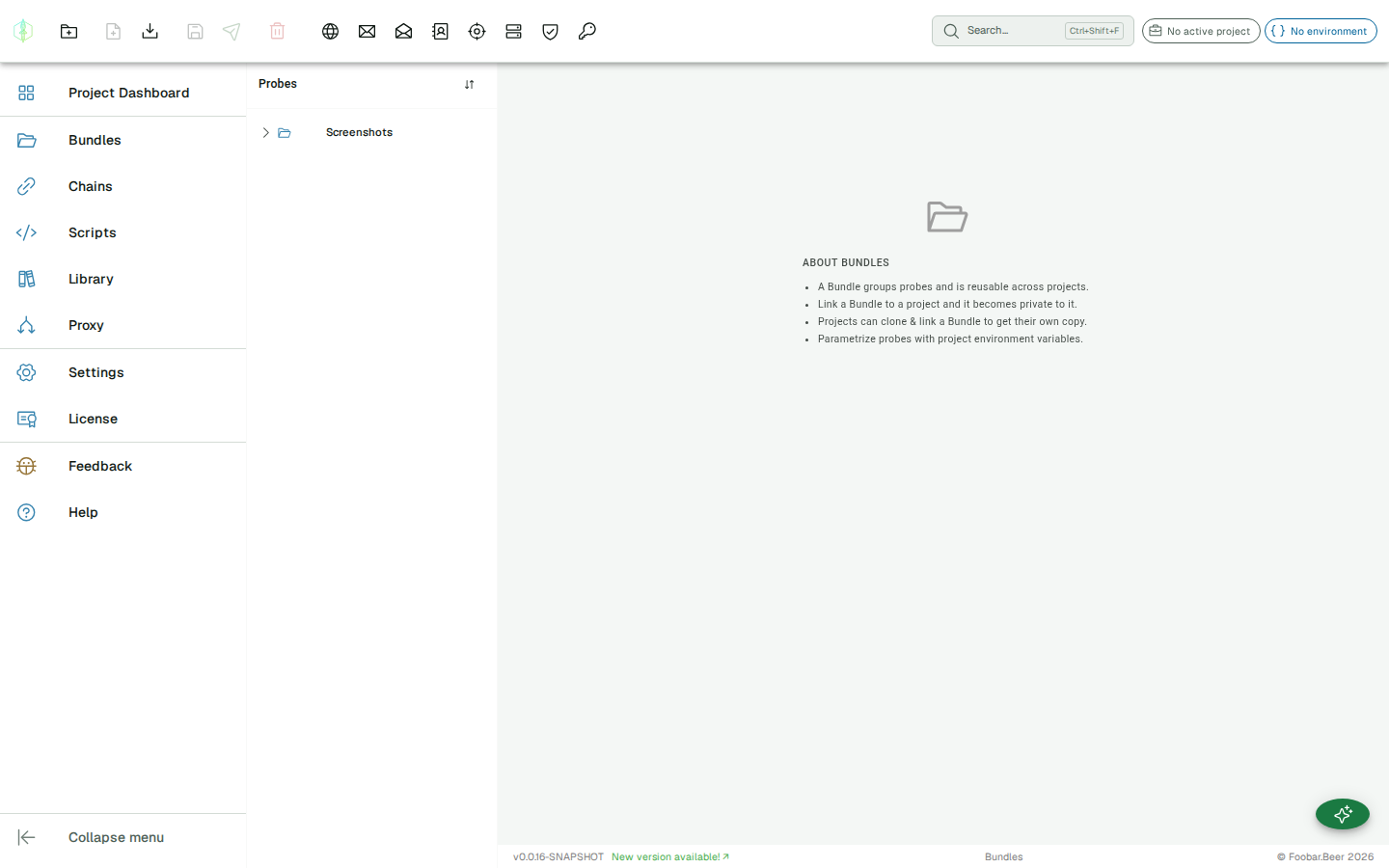
In the Project Explorer on the left, open the + menu in the header and choose Add Bundle. Give it a name and confirm. A bundle is the container everything you author lives in.
2. Add an HTTP probe
Section titled “2. Add an HTTP probe”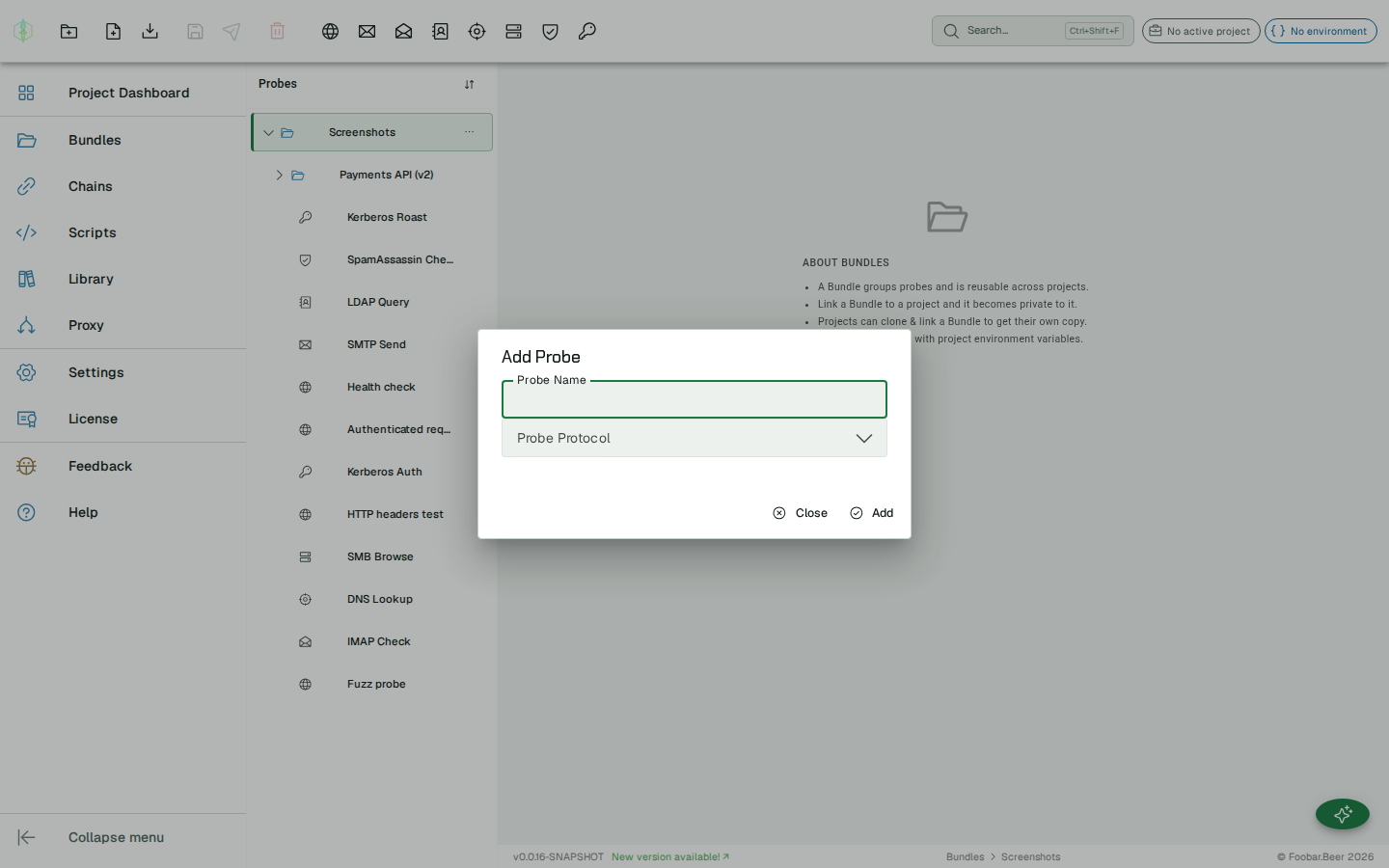
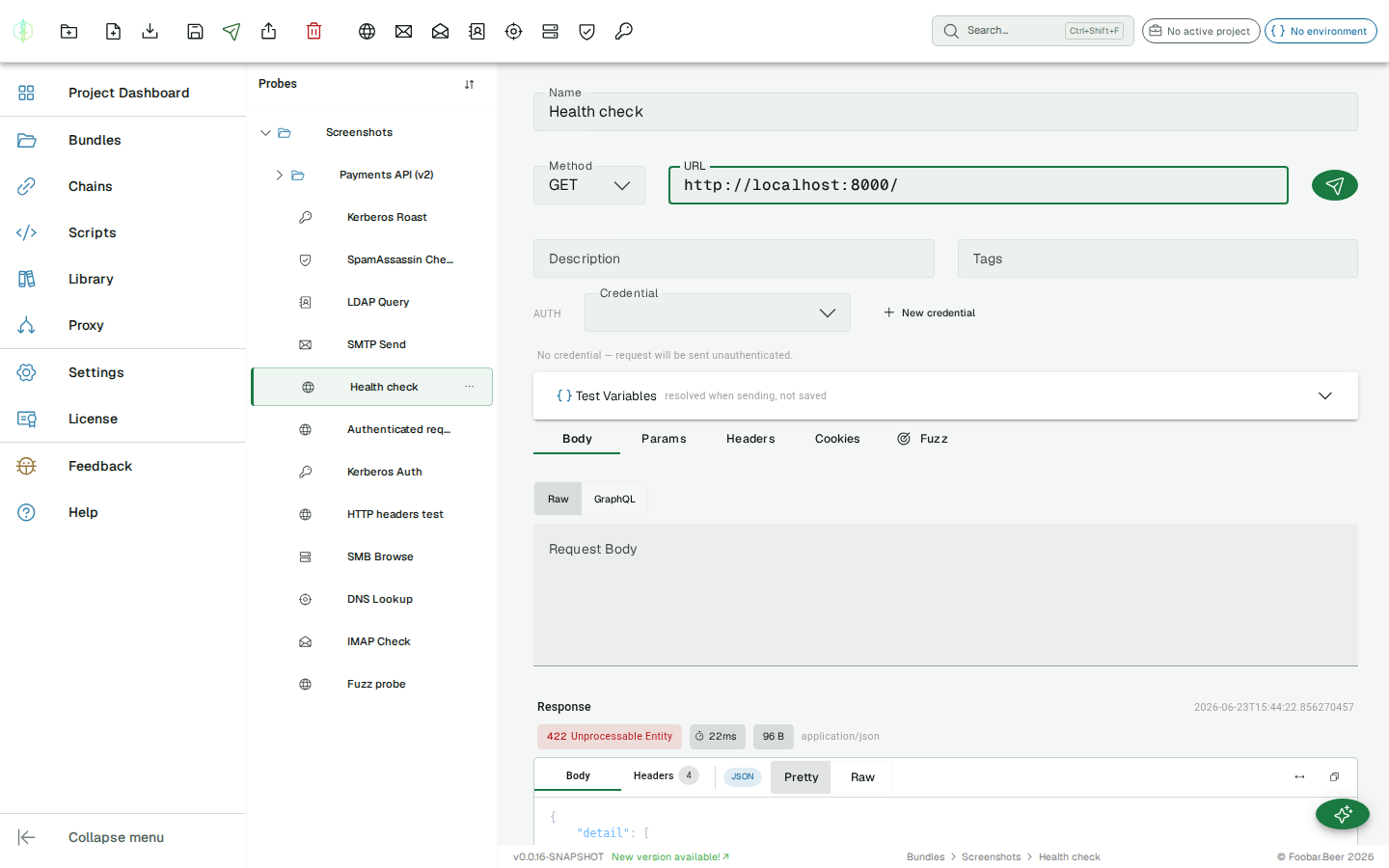
On the bundle’s row, open the ⋯ menu and choose Add Probe. Name it, pick HTTP as the protocol, and click Add. The probe opens as an editor tab.
3. Configure the request
Section titled “3. Configure the request”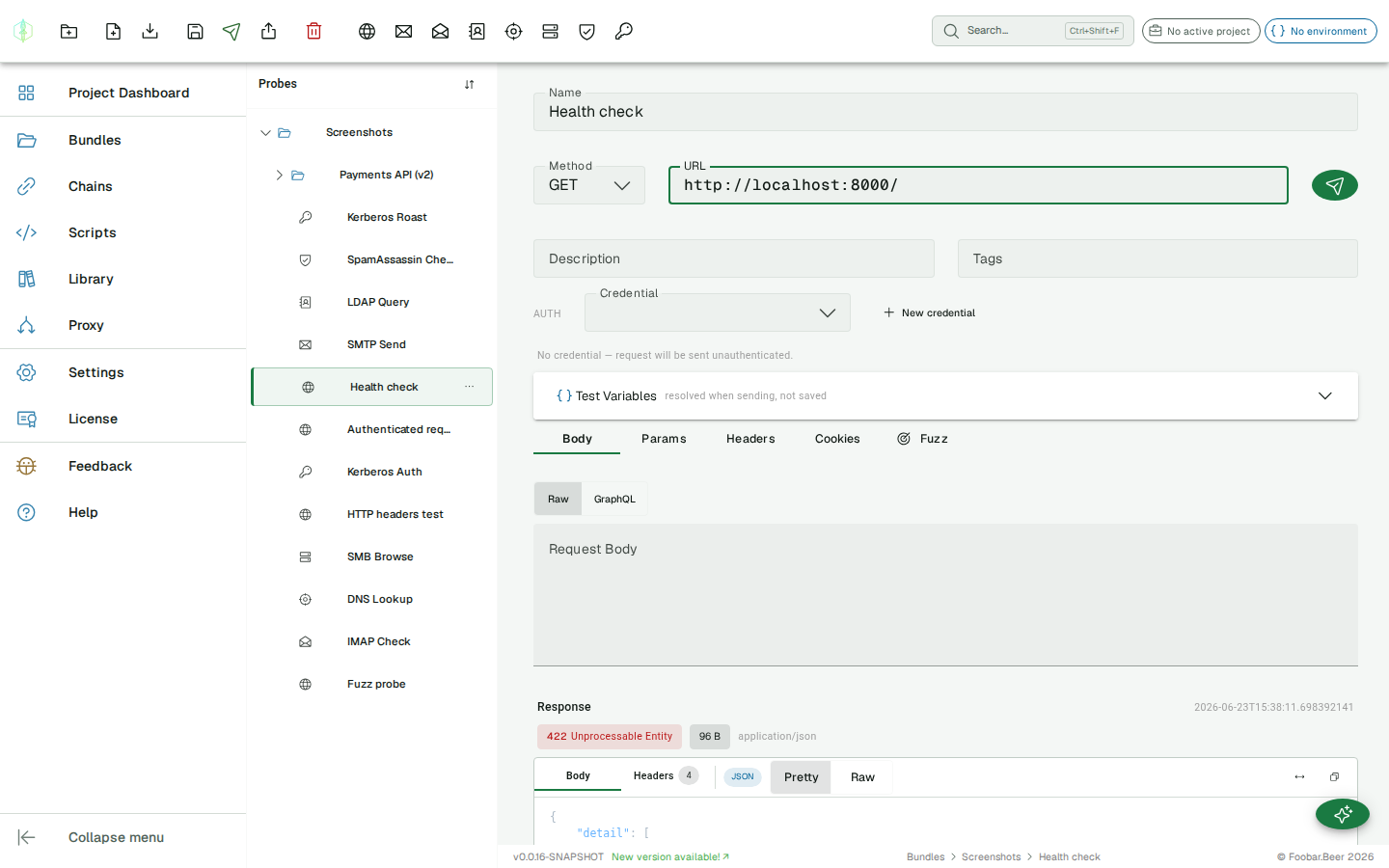
Fill in the target URL and select the HTTP method (GET, POST, etc.). You can also add:
- Headers: custom request headers
- Query parameters: appended to the URL
- Request body: for POST/PUT/PATCH requests
- Cookies
4. Send the probe
Section titled “4. Send the probe”Click Send. VirtuProbe connects to the target and displays the response:
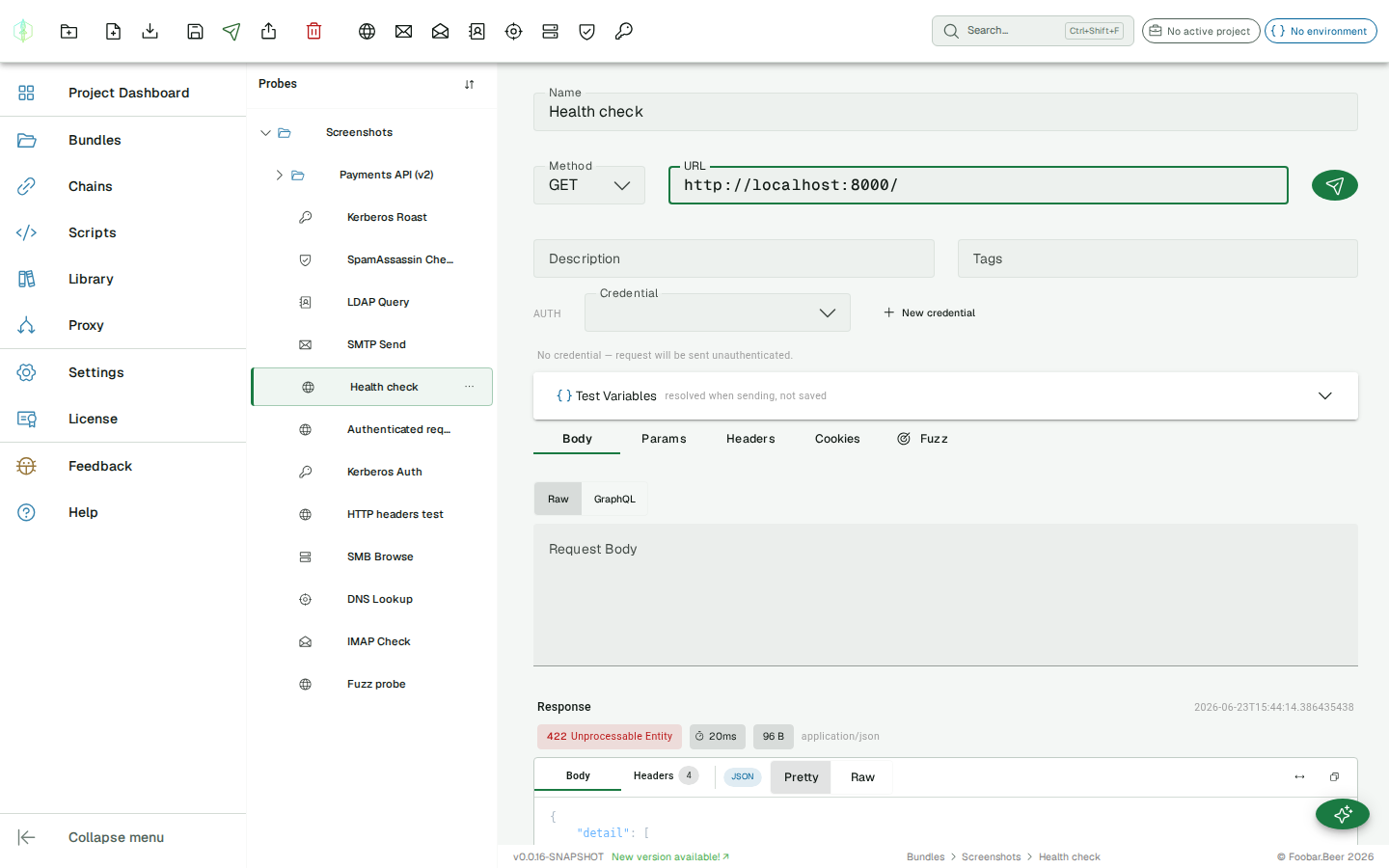
- Status code and response time
- Response headers
- Response body with syntax highlighting
5. View history
Section titled “5. View history”Every send is recorded. Open the History panel inside the probe editor to browse previous responses.
Next steps
Section titled “Next steps”- Add assertions to automatically validate the response
- Use environments to parameterize the URL and headers with
{{variables}} - Chain this probe with other protocols in a chain